

FrogBlog
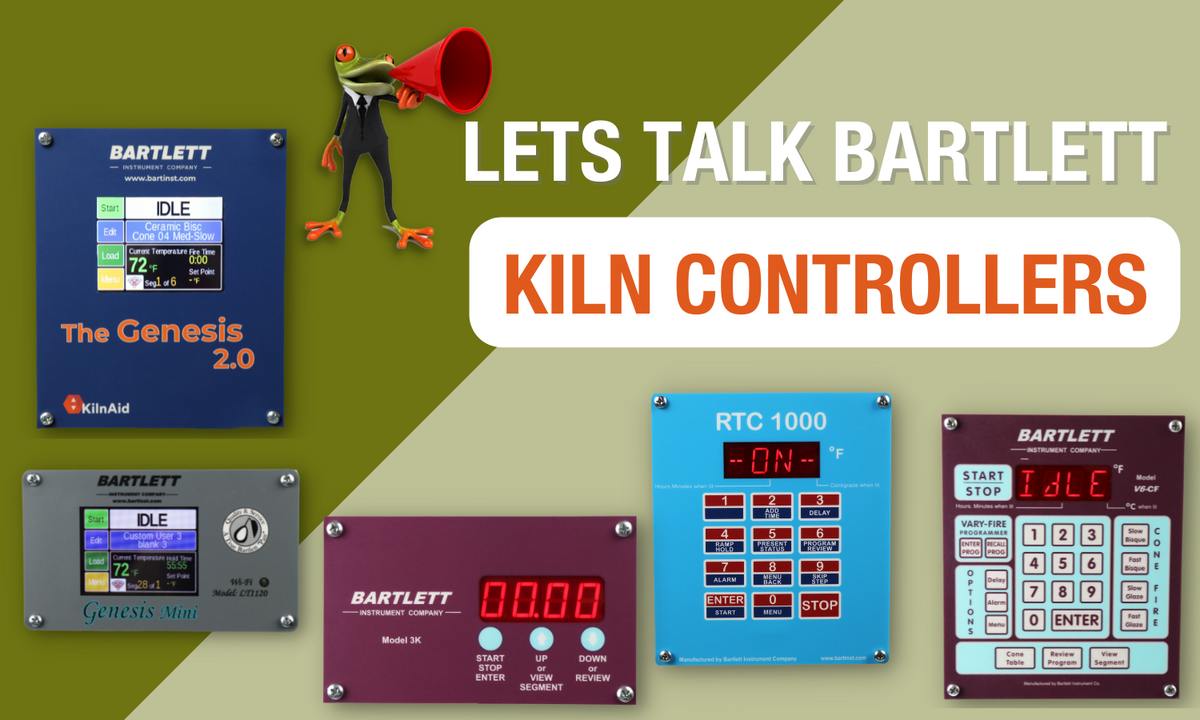
Let’s Talk Bartlett Kiln controllers!
Let's talk Kiln Controllers, specifically Bartlett Controllers! Bartlett Instruments offers a variety of controllers that accommodate every type of kiln user. With so many kiln controllers in the market, it's hard to choose which one is going to be the right one for you. Different manufacturers offer different controllers, many of which are made by Bartlett Instruments. Some of the controllers are called by different names, but "underneath, a rose by any other name is still a Bartlett!"In previous Blog Posts we've covered other Kiln Controller's, made by different manufacturers, and their features and benefits. This article is the next in our series as we make our rounds to cover all the offerings. Here are the links to those articles: PART ONE: 3-Key Controller Tricks PART TWO: 12-Key Controller Tips & TricksThere’s A New Smart Controller In Town!We're here to help make your kiln controller choices a bit easier!! It's all about making sure YOU feel confident in your buying choices. Keep reading to get to know each controller. You'll learn about each one's features and which one's work the best for each type of firing. Want to know more? Let's Chat! Ready to find your perfect Bartlett Kiln Controller? Let's Start! Genesis 2.0 This is also know as the Sentinel Controller, it has a different face plate, but it's based on the Genesis 2.0. This modern and intuitive user platform with touch-screen technology for an effortless user interface. This controller can store up to 12 custom user programs with up to 32 segments per program and has the ability to make adjustment during a firing such as add segments, add temperature, and skip segments. Additionally, the easy-to-follow screen descriptions and graphical display of the firing process, allow the Genesis kiln controller to make firing kilns extremely straightforward. The Genesis 2.0 includes a larger processor for increased future capabilities as well as improved encryption for greater security. Check out the list of Genesis 2.0/Sentinel controller features: touch-screen technology for the user interface easy-to-follow screen descriptions different user-interface levels, which can be set to match the user’s firing knowledge graphical display of the firing process right at the controller Store up to 30 custom user programs Up to 32 segments per program Ability to make adjustment during a firing such as add segments, add temperature, and skip segments Built in diagnostics testing for use with a current sensor Alarm Error Codes WiFi enabled for easy software updating Register your Genesis on Bartlett's web site or mobile app (Kiln Aid) for remote monitoring of your kiln. Genesis Mini - Model 1120 Genesis Mini is like the little sibling to the Genesis 2.0 same modern and intuitive user platform with touch-screen technology for an effortless user interface in a smaller screen. This controller although small has a lot to give has the capability to fire any type of kiln firing you wish. This controller can store up to 30 custom user programs with up to 32 segments per program. Has the ability to make adjustments during a firing such as add segments, add temperature, and skip segments. Additionally, the easy-to-follow screen descriptions and graphical display of the firing process, allow this Genesis kiln controller to make firing kilns extremely straightforward. This controller will make firing kilns just a little bit easier in these ways: touch-screen technology for the user interface easy-to-follow screen descriptions different user-interface levels, which can be set to match the user’s firing knowledge graphical display of the firing process right at the controller Store up to 30 custom user programs Up to 32 segments per program Ability to make adjustment during a firing such as add segments, add temperature, and skip segments Built in diagnostics testing for use with a current sensor Alarm Error Codes WiFi enabled for easy software updating Register your Genesis on our web site or mobile app (Kiln Aid) for remote monitoring of your kiln Use for single zone kilns only V6-CF The V6-CF it's also know as the RampMaster, has a different face plate but is based on this controller. This is a 12 -key controller that is great for ceramic/pottery, glass or jewelry firing! With this 12-key cone-fire method, you can select 1 of the 4 firing speeds, your cone number and fire ceramics with as few as 6 key presses! The vary-fire method gives you the freedom to create up to six, 8-step user programs to fire your ceramics, crystalline glazes, glass or jewelry. Other features include delay start, preheat, alarm, cone adjustments, thermocouple adjustments, °F or °C operation, 16 segment program, and skip step. Advanced features of the V6-CF's include 3-zone control and KISS (kiln interface software system) for remote programming and data collection from a personal computer! Check out the list of V6-CF/RampMaster ll controller features: 24-key membrane switch keypad Selectable # of Zones (or Thermocouples), from 1 to 3 PID control algorithm Can store up to 6 Ramp/Hold programs (last fired program remains in memory) 8 Segments per program (each segment has a ramp rate to a temperature, and a soak period) , with an option to combine User programs 5 and 6 to get a 16 segment program Ability to "Skip-Step" (move from one segment to the next ramp) 4 speeds of Preset Conefire Programs, Slow Bisque, Fast Bisque, Slow Glaze, Fast Glaze Ability to perform a ConeFire to RampHold firing Ability to perform a delayed start of the kiln Alarm Error Codes Computer Interface Available RTC 1000 This controller has features that make it great for glass artists! The RTC 1000 has all of the same features as the old DTC controllers along with several improvements, including add time, back key, and recall user program to allow easier use of the controller. Check out the list of RTC 1000 controller features: Cone Fire 3 choices (Fast, Medium, and Slow) for Speed of a Cone Fire firing compared to 4 choices on a V6CF controller Preheat 6 Ramp/Hold Programs Edit-on-the-Fly Zone Control Thermocouple Offset Model 3K This low cost smaller kiln controller has only three keys, best to fire ceramics/pottery, uses a Type K thermocouple, and requires a 24V AC center-tap power transformer input. Other features of the Model 3K are: it's low cost, single set-point temperature controller module, and new, improved software! Keypad : 3 key No. of Thermocouples or Zones 1 Thermocouple Type: K, S, or R (N as a special order) Method of Control: Automatic adjusting PID Add Time (to current hold period): No ConeFire: Yes RampHold: Yes Temperature Scale: °F or °C Delay Start: Yes Alarm: Yes Error Codes: Yes Computer Interface Available: No Want to know more? Let's Chat! ***Disclaimer: The opinions and content presented are KilnFrog, LLC's alone and are not generated, influenced, or produced by Bartlett Instruments or any kiln manufacturer. We thank Bartlett Instruments for the use of their name and product images in this piece.
Read moreFrogBlog

PART TWO: 12-Key Controller Tips & Tricks
Happy Firing!! Now, a post for all you 12-button controller owners. Here are a few tricks that are good to know to help you be in better control of your firings! These tricks should apply to all of the following controllers! Changing a Target Temperature During a Firing - If the kiln is firing and you need to modify the current ramp target temperature (or hold time), Press the #4 USER PROG key. The controller will display the current target temperature and setting. Use the numeric keypad to change the temperature value and press ENTER. The controller will next display the current ramp hold time and setting. This too can be modified if necessary. Press ENTER again to exit the editing mode. Adding Time to a Hold - If the kiln is firing and you need to add time to the current ramp hold time, press the #2 ADD TIME key. Five (5) minutes will be added to the hold time each time the key is pressed. If the firing is in the first ramp, you can only edit the first ramp hold time. To edit the second ramp hold time, wait until the firing has progressed into the second ramp. Skip Step - To end a hold before the time has expired, use the Skip Step function to advance to the next ramp. Press the #9 SKIP key to view the next ramp and press ENTER. Threshold Alarm - To sound an audible alarm when the controller reaches a temperature, press the #7 ALARM key. ALAR shows in the display alternating with the alarm temperature. You can use the numerical keypad to enter a new alarm temperature or press Enter to keep the existing value. Setting the value to zero disables the alarm feature. When the kiln reaches the alarm temperature, the display will indicate ALAR and the buzzer will sound. Silence the alarm by pressing any key except STOP. Pressing STOP ends the firing. You can program the alarm before you start the firing or during the firing. Hopefully, these few tips will help your work be the best it can be! If you are interested in learning more about the different controller options that are available check out our controller option videos here! Your Kiln Gal, Gail
Read more